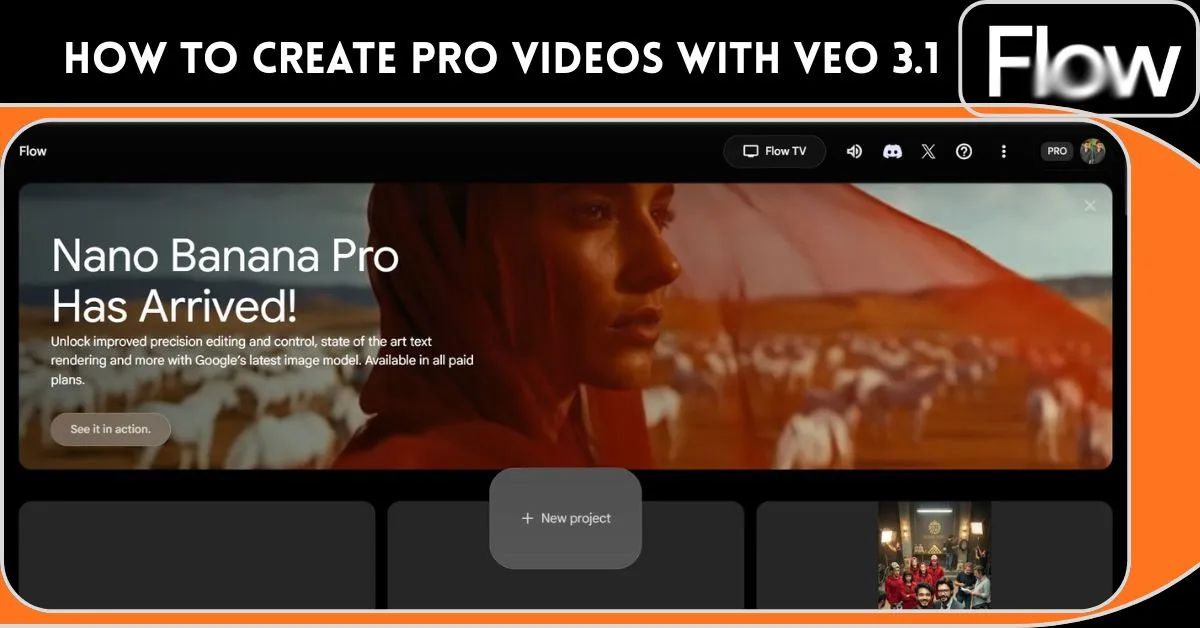
We’ve all been there—a breathtaking cinematic idea flashes through your mind, but then reality hits. You don’t have a million-dollar camera, a professional lighting crew, or weeks to spend in an editing suite. But what if the distance between your imagination and a high-definition screen was just a few typed words? Google Flow, powered by the revolutionary Veo 3.1 model, is here to turn that “what if” into reality.
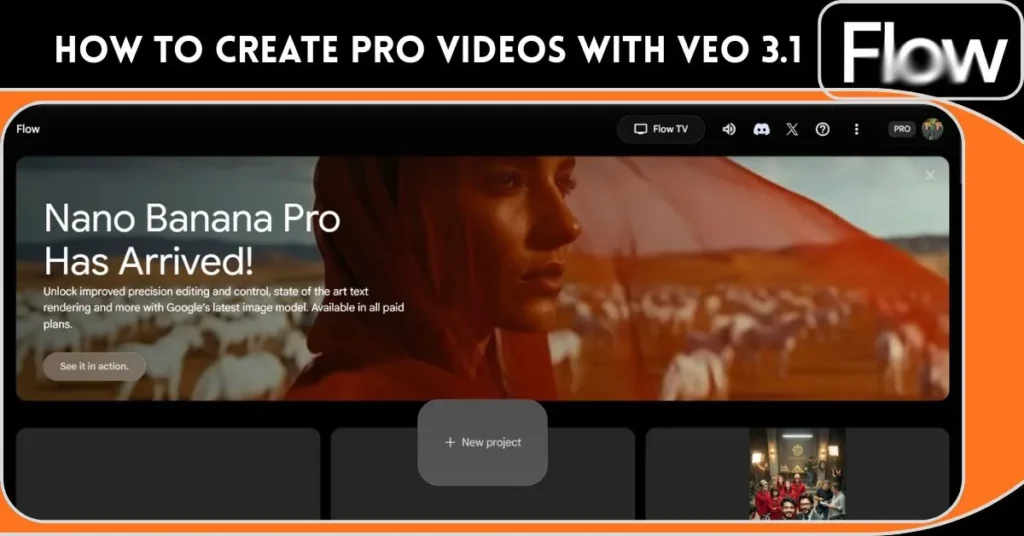
What is Google Flow?
Google Flow is an all-in-one AI creative studio designed by Google to simplify professional storytelling. It acts as a centralized workspace where users can generate high-fidelity videos and images using Google’s most advanced generative models. Whether you start with a simple text prompt or an existing image, Flow provides the tools to build complex, cinematic scenes from scratch.
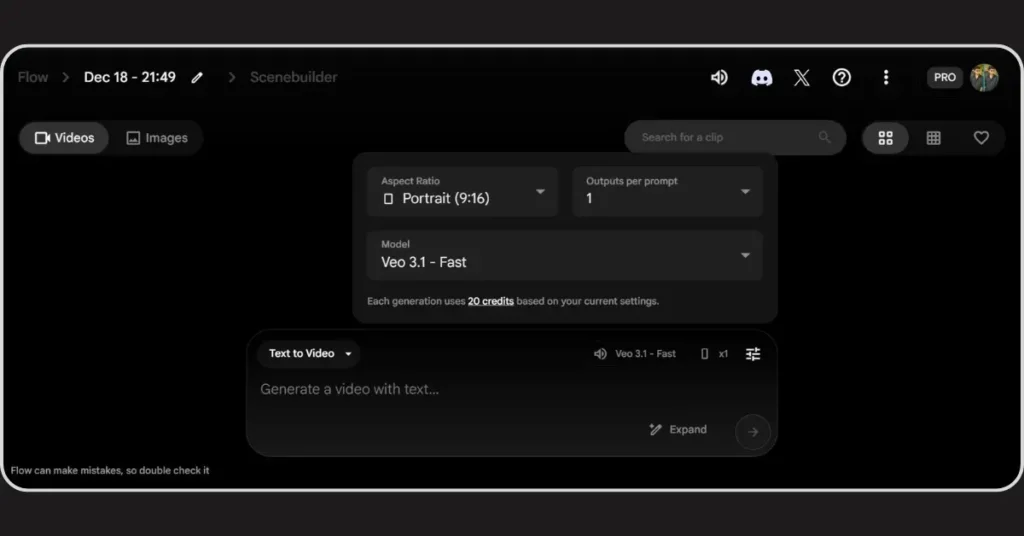
Google Flow Features of Veo 3.1
The backbone of Google Flow is Veo 3.1, Google’s most capable video generation model to date. Here is what makes it special:
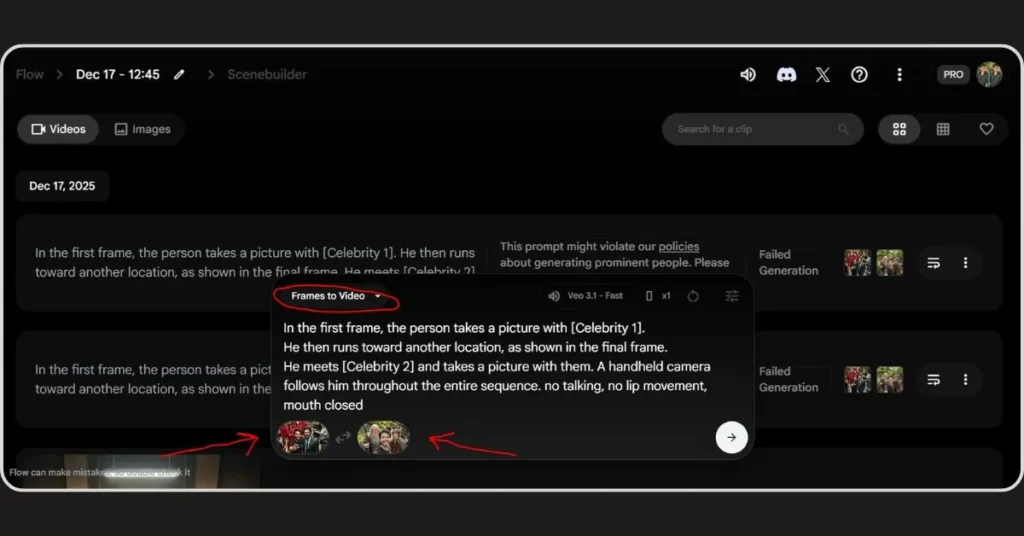
- High-Speed Generation: The “Veo 3.1 – Fast” mode allows for rapid creation without sacrificing visual quality.
- Frames to Video: This feature allows you to upload specific images (frames) and let the AI generate the motion between them for precise control.
- Ingredients to Video: You can combine multiple “ingredients,” like reference images and text, to ensure the AI follows your specific creative direction.
- Native Audio: Unlike basic generators, Veo 3.1 can generate native audio to match the visuals, making the video feel alive.
- Cinematic Flexibility: It supports various aspect ratios, including Landscape (16:9) for YouTube and cinematic projects.
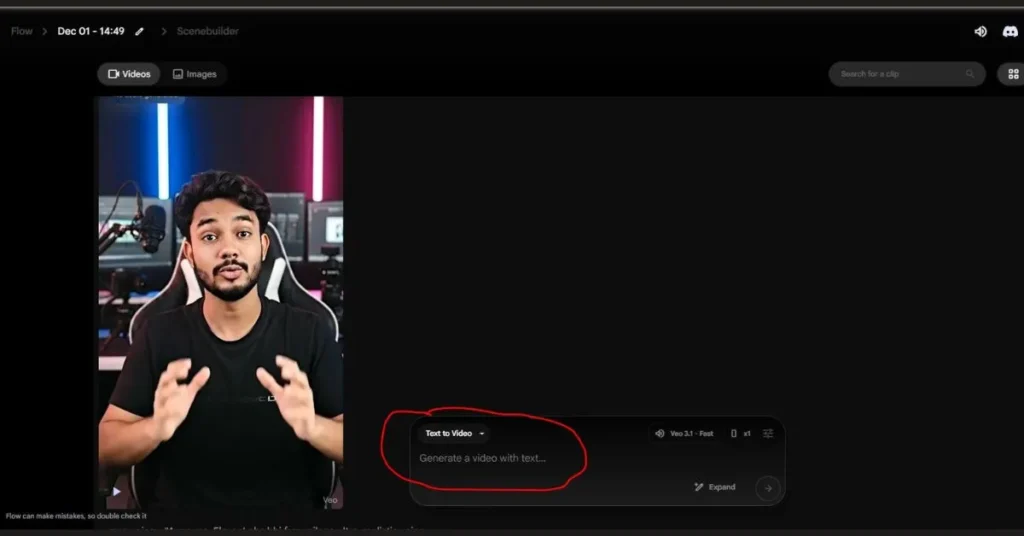
You Are Not Just a User; You Are the Director
The real twist is that Google Flow doesn’t just “give” you a video; it gives you a Scenebuilder. Unlike other tools that generate random clips, Flow allows you to Expand your videos and refine them, giving you the kind of control usually reserved for professional film directors. You aren’t just typing prompts; you are directing the camera, the timing, and the flow of the scene.
Who can make videos with Google Flow?
- YouTube Creators: Use “Text to Video” to create high-quality b-roll or entire cinematic sequences.
- Social Media Managers: Quickly generate 16:9 or vertical content using the “Fast” model.
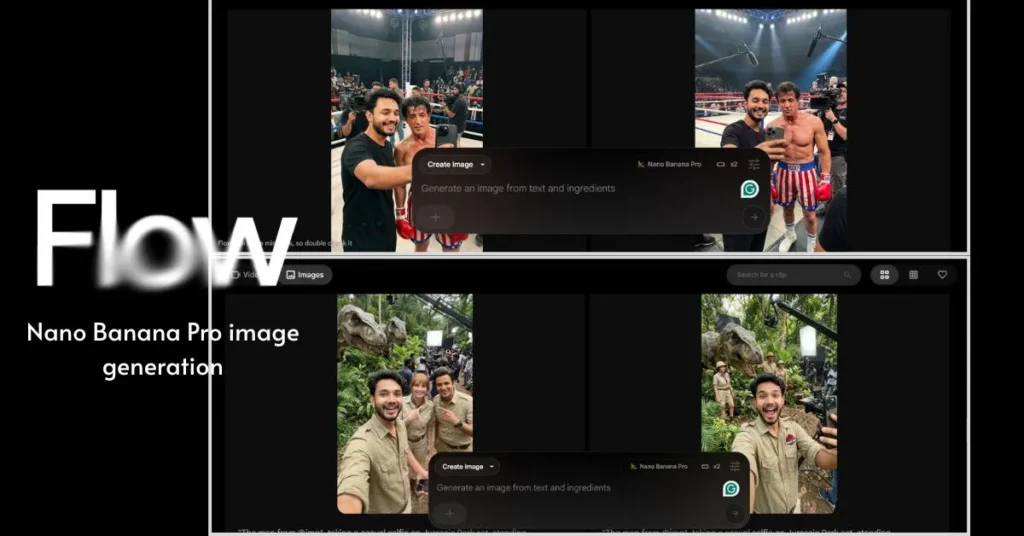
- Graphic Designers: Use Nano Banana Pro within Flow to generate high-end images that can be converted into video.
- Storytellers: Anyone with a story to tell can now bypass technical barriers and go straight to creation.
Google Flow Pros and Cons
| Pros | Cons |
| Professional Quality: Features the latest Veo 3.1 and Nano Banana Pro models. | Pro Subscription: Many advanced features and models require a “PRO” account status. |
| Versatile Inputs: Can generate from text, frames, or “ingredients”. | Learning Curve: Managing complex scenes in the Scenebuilder takes practice. |
| Clean Interface: Dark, modern UI that focuses entirely on the creative process. | AI Limitations: As the UI notes, “Flow can make mistakes,” requiring human oversight. |
Google Flow vs Other AI Video Tools
While tools like Sora or Runway focus on single-clip generation, Google Flow is built as a complete workflow. With the integration of Nano Banana Pro for images and Veo 3.1 for video in one dashboard, it offers a seamless transition from idea to final export that others struggle to match. The ability to extend and expand clips directly within the “Flow” makes it a more cohesive tool for creators.
FAQs about Google Flow AI
- What models does Google Flow use? It primarily uses Veo 3.1 for video and Nano Banana Pro for image generation.
- Can I edit my videos after generating them? Yes, you can use the Expand and editing tools to refine and lengthen your clips.
- Is it available for free? While basic tools may be accessible, “PRO” features and specific high-end models are visible in the dashboard for premium users.
Bring Your Dreams to Life Today
There is a profound sense of satisfaction in seeing a world you imagined suddenly breathing and moving on your screen. Google Flow isn’t just a tool; it’s the key to the cage that has been holding your creativity back. Don’t let your stories stay silent.
Start your first project in Google Flow today and witness the magic of Veo 3.1!