How to Use StoryBoard AI
Master the art of turning text stories into cinematic prompts with this comprehensive guide.
1 Getting Started: API Key
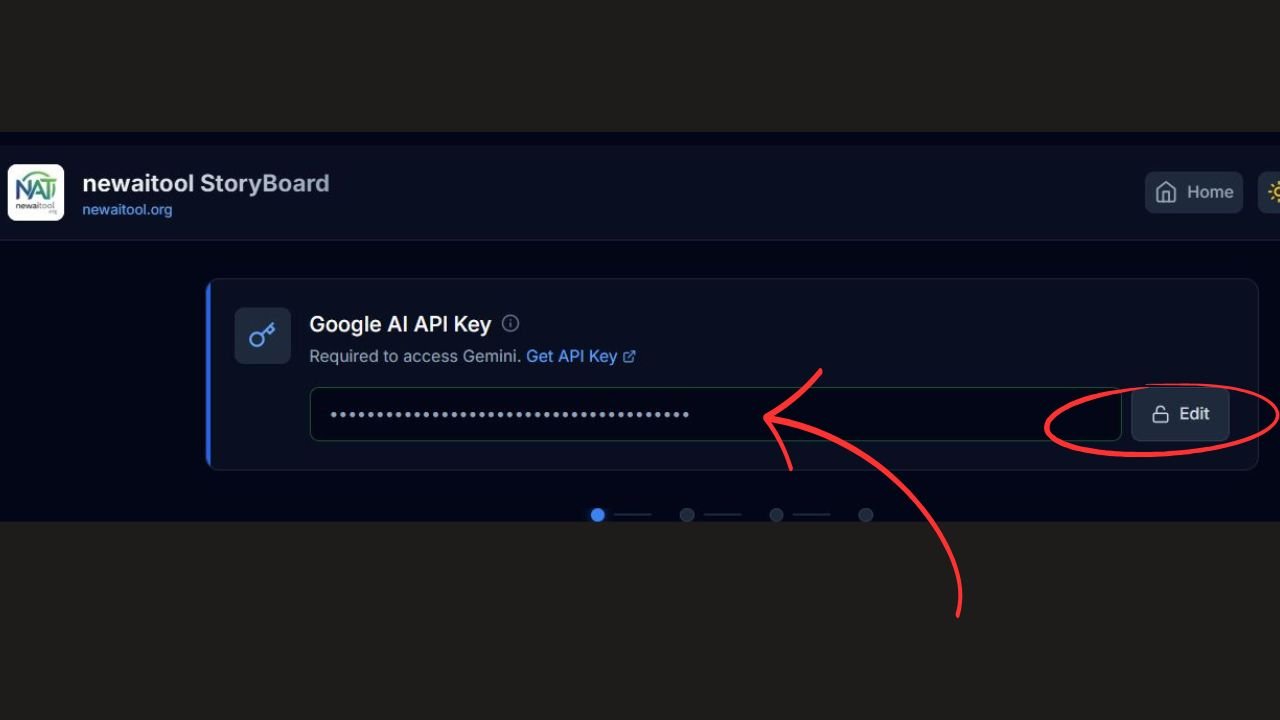
To use Newaitool StoryBoard AI, you need a Google Gemini API Key. This allows the tool to intelligently analyze your story and extract characters and scenes.
- Secure & Private: Your API Key is stored locally in your browser. We never see it or save it to our servers.
- How to get one: Click the Get API Key link in the dashboard to generate a free key from Google AI Studio.
- Save/Lock: Paste the key into the input field and click "Save". You can "Lock" it to prevent accidental edits.
2 Step 1: Story Input & Settings
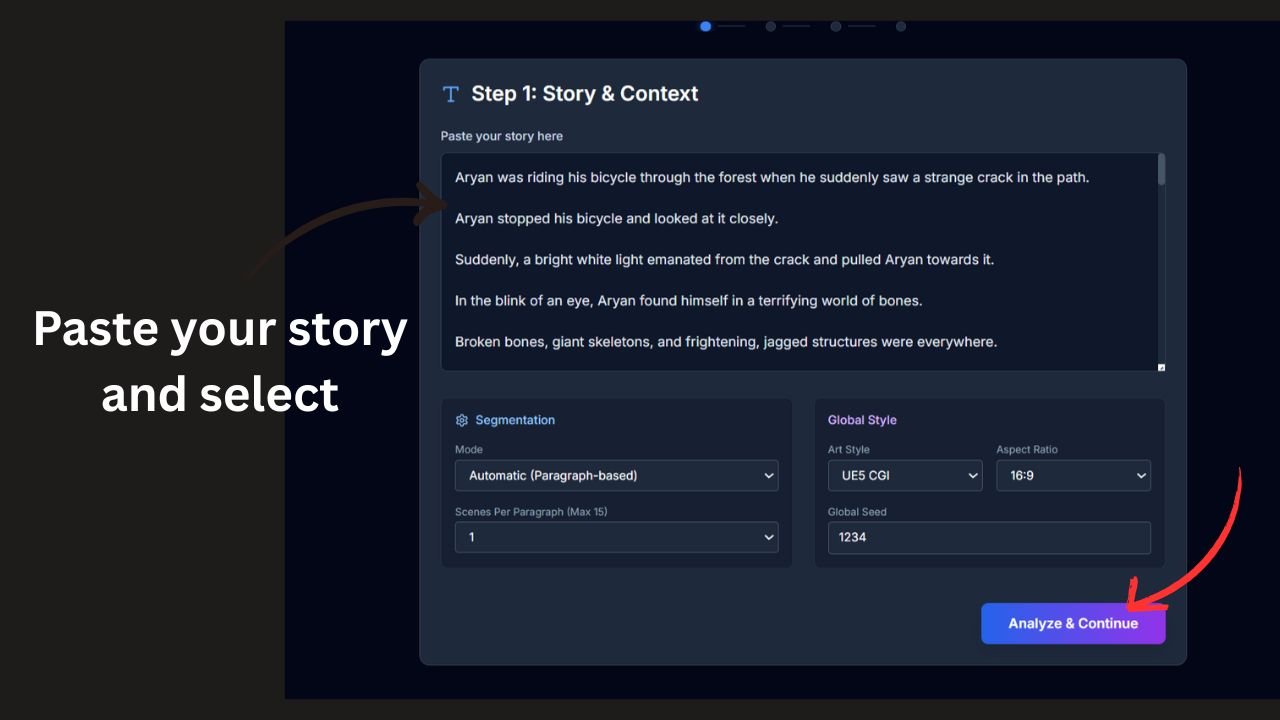
The Story Text
Paste your script, novel excerpt, or story summary into the large text area. The AI works best with descriptive text ranging from 100 to 2000 words.
Segmentation Mode
Currently set to Automatic. The AI reads your text paragraph by paragraph to ensure the flow of the storyboard matches your writing.
Global Style Settings
- Art Style: Choose from presets like Cinematic Realistic, Anime, or Cyberpunk. Select "Custom" to type your own unique style prompt.
-
Aspect Ratio:
• 16:9 - Standard Cinematic (YouTube/Movies)
• 9:16 - Vertical Video (Shorts/Reels)
• 1:1 - Square (Instagram) - Scenes Per Paragraph: Determines how detailed the breakdown is. Use 1 for a summary, or 3-4 for a detailed shot-by-shot breakdown.
3 Step 2: Character Forge
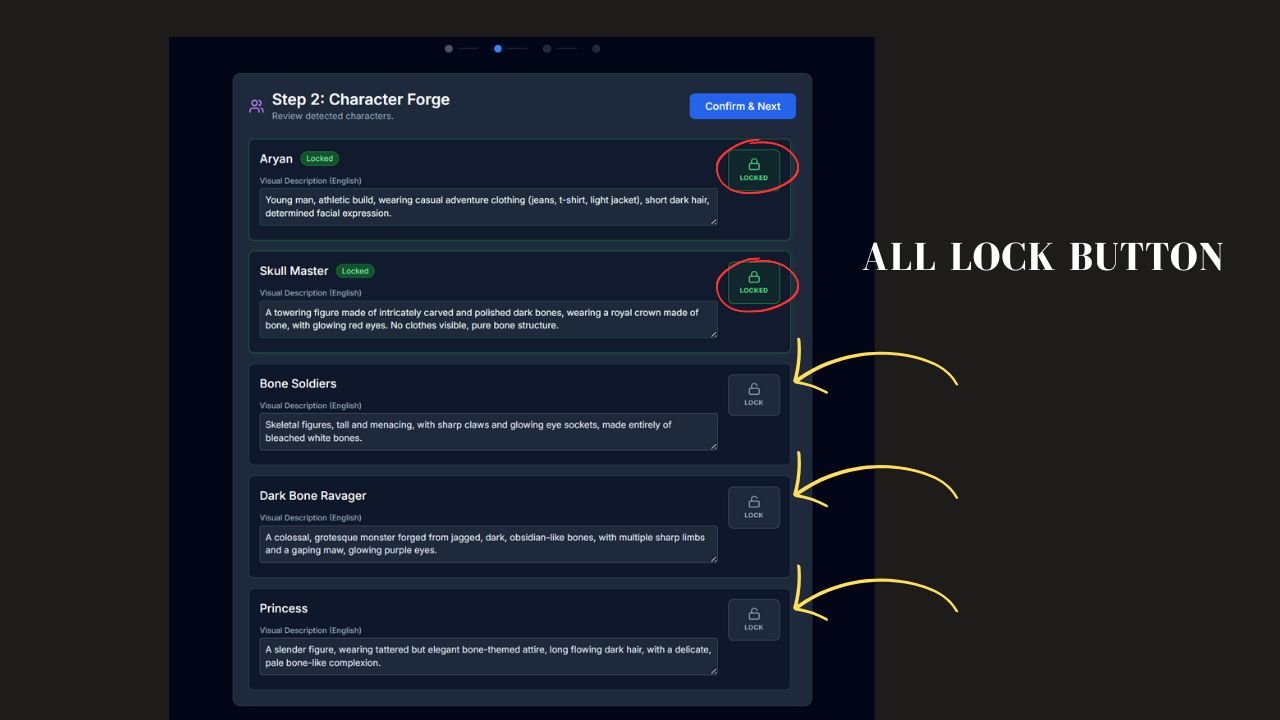
The AI automatically detects characters and generates physical descriptions for them based on your text. This ensures character consistency across all generated images.
- Review Descriptions: Check if the AI correctly identified hair color, clothing, and age. You can edit these descriptions manually.
- The Lock Button: Once you are happy with a character's look, click the Lock button. This finalizes the description for generation.
4 Step 3: Scene & Location

This is the heart of the tool. The AI breaks your story into specific visual scenes. You can fine-tune every detail before generation.
Camera Angles
Select from cinematic angles like Wide Shot, Over the Shoulder, or Low Angle.
Scene Details
- Visual Action: What is happening?
- Arrangement: Where are they?
- Props: What are holding?
- Lighting: Time of day and mood.
5 Step 4: Generate & Export
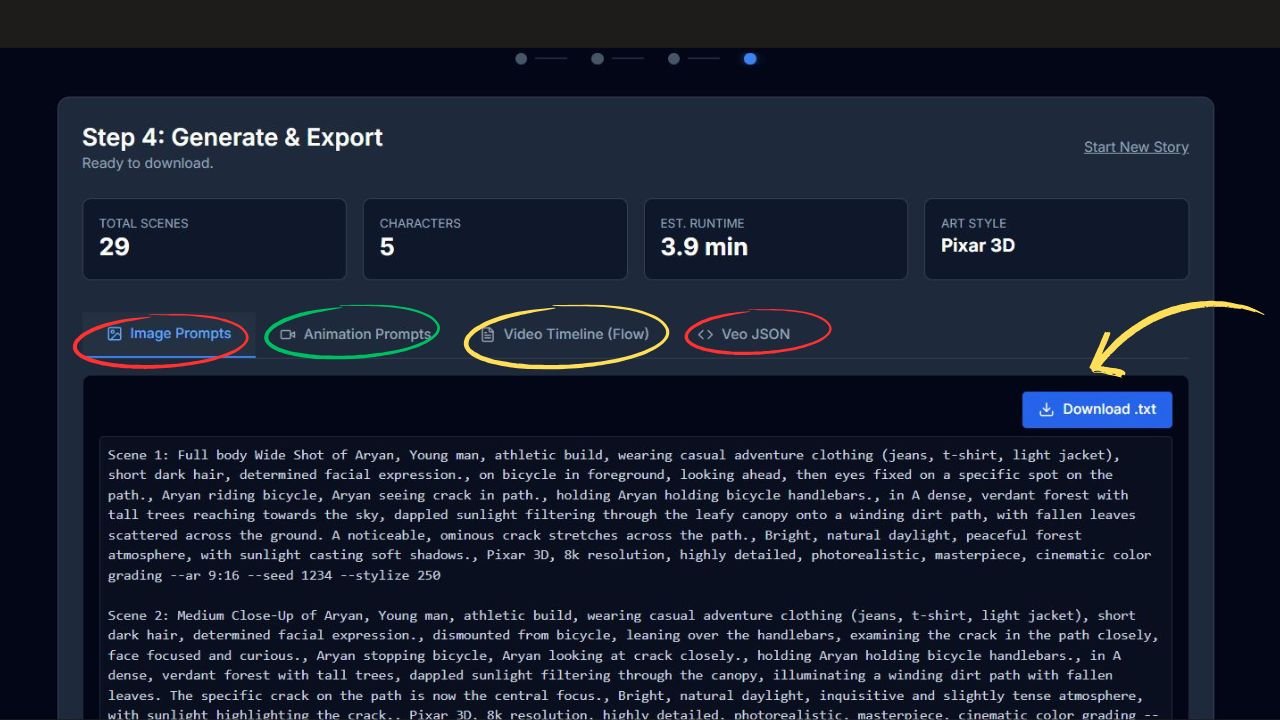
The final step brings everything together. StoryBoard AI converts your structured scenes into optimized prompts compatible with major AI art and video generators.
Image Prompts (Midjourney / Flux / SDXL)
Use this tab for generating high-quality static images.
- Format:
Scene X: [Angle] of [Character + Desc], [Action], [Location], [Lighting] --ar 16:9 - How to use: Click "Download .txt". Copy line by line into Midjourney Discord or Flux.
- Key Feature: Character descriptions are automatically embedded into every single prompt to ensure they look the same in every shot.
Animation Prompts (Runway / Pika / Kling)
Use this tab if you want to turn your images into video, or generate video from text.
- Focus: These prompts strip away static details and focus on Motion and Camera Movement.
- Example: "Natural movement, Static camera. High motion quality."
Video Timeline (Flow / Veo 3.1)
A structured 8-second visual roadmap for advanced Video AI tools.
- Format: Breaks down a single scene into 4 distinct shots (Establishing, Action, Detail, Resolution).
- Usage: Copy this structure into LLMs or Video tools that accept complex multi-shot instructions.
Veo 3.1 JSON (Developer)
Designed for programmatic video generation workflows using Google's Veo or VideoFX.
- Format: A structured JSON file containing all scene data, negative prompts, and seeds.
- Usage: For developers or users building automated pipelines with the Gemini/Veo API.
Understanding the Stats
- Total Scenes: The total number of images you will need to generate.
- Est. Runtime: An approximation of the final video length.
Tip: If you aren't satisfied with the result, click "Start New Story" at the top right to clear the data and try again with a refined script.
Ready to create? Scroll up to the top and paste your story!